Part of Digital Security Tips
Tip:
When recording a Zoom meeting that will be shared publicly, we recommend that you not include participants’ names.
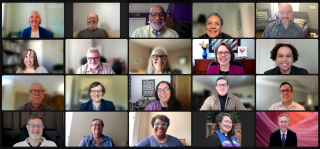
By default, when recording a Zoom meeting, Zoom includes the names of the participants in the lower left of each participant’s video/image box. This can become a security issue, not just for the primary speakers but for any of the participants.
Concerns
When names are included, it becomes possible to identify and target the individuals who were participating in a meeting. The UUA has seen examples where screenshots are taken of a UU meeting and used out of context in viral posts to spread disinformation or create false narratives about our values. This becomes even more concerning when those who are not even presenting receive unwanted attention.
How to Disable Participant Names in Recordings
There are three settings in Zoom that control the display of participant names. Two of those are related to how they show up in recordings (local and cloud), and one only impacts what you see in Zoom.
To Disable Participant Names in Cloud Recordings
- Sign into Zoom.com and go to Settings.
- Select the “Recordings” tab.
- Under “Advanced Cloud Recording Settings” uncheck the box for “Display participants’ names in the recording.”
To Disable Participant Names from Local Recordings
- While the Zoom meeting is running and before you start the local recording, open the Settings menu (accessed by opening the video or audio settings).
- Choose “Recording.”
- Uncheck “Display participants’ names in the recording.”
- Don’t forget to start your local recording afterwards! 😉
Remember that Zoom updates its software regularly, so be sure to check Zoom’s Knowledge Base if the instructions above don’t work for you.
Stay Safe in Zoom Meetings You Don’t Control
Consider only using your first name when joining a Zoom meeting that you are not running, or if you are not sure if it will be made public.
Consider Taking It Further By
Use Zoom’s advanced cloud recording feature to “Record active speaker, gallery view, and shared screen separately.” Then use video editing software to combine these elements and add the “lower thirds”—contextual information for viewers that may include names of public leaders, locations, pull quotes, social media handles, and calls to action—that you deem appropriate and safe for the video’s intended use.
Links to More Resources
- Discounted Zoom Licenses through the UUA (Includes 5 GB of Cloud Storage per license.)
- Zoom Knowledge Base
- Create Lower Thirds that Don’t Suck, by Frame.io